

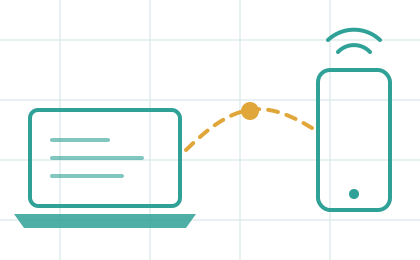
The phone never forwards packets
Ferry opens connections as an ordinary app, so tethering blocks from the carrier or the vendor don’t apply. To the network, the traffic looks like the phone’s own.
The phone never forwards packets
Ferry opens connections as an ordinary app, so tethering blocks from the carrier or the vendor don’t apply. To the network, the traffic looks like the phone’s own.
The whole computer, not one browser
A virtual network adapter routes every app through the phone, including apps that know nothing about proxies, UDP for calls and games, and DNS.
A key per device
Knowing the Wi-Fi password is not enough. Each computer pairs once by QR, and every link after that is a Noise handshake against a pinned key.
Built to recover
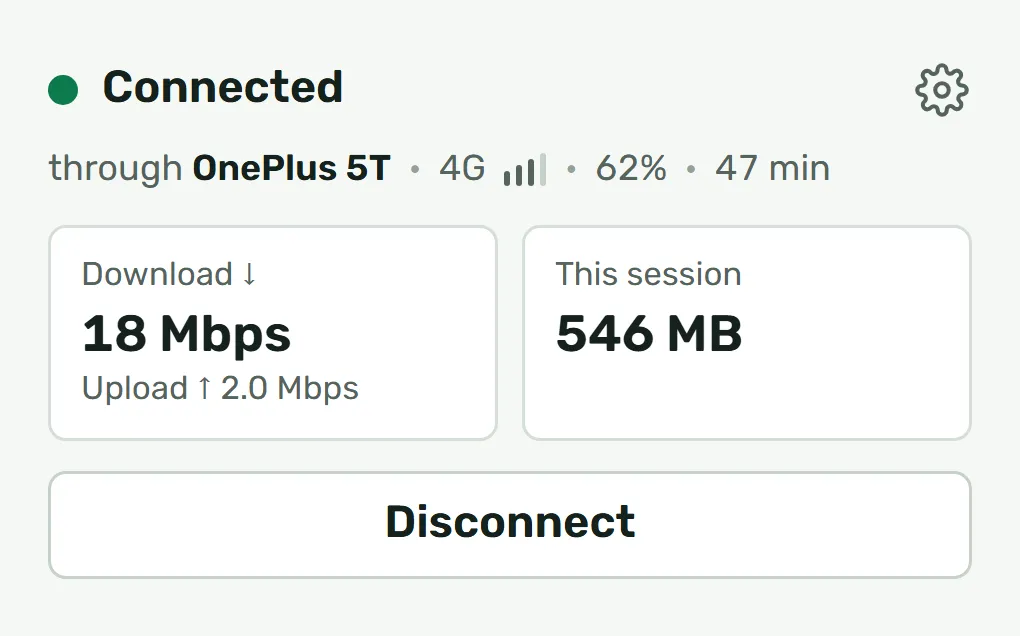
Ferry hears from the phone every second, and redials by itself within seconds when the link goes quiet. After a crash, it puts the computer’s network back the way it was.
Typical behaviour of each kind of tool. The comparison page explains each column.
| Ferry | System hotspot | Proxy apps over Wi-Fi | USB apps with a driver | |
|---|---|---|---|---|
| Works when tethering is blocked | Yes | No | Yes | Yes |
| Whole computer, including UDP | Yes | Yes | No | Yes |
| No cable, no separate driver | Yes | Yes | Yes | No |
| A key per paired device | Yes | No | No | Cable only |
| Free, without ads | Yes | Yes | Varies | Varies |
Ferry’s protocol, its threat model and the reasons behind each decision are published here, including what we rejected and what Ferry does not protect against.